Everyday work
Updates
An update is a sentence or two about what moved on a project. Flow keeps it and puts it in the engagement's next note. Nothing is emailed when you save it.
What it's for
Record progress while you remember it, and Flow tells your client in the next scheduled note. You never have to write the email yourself.
Last updated
Add an update
- Open the engagement.
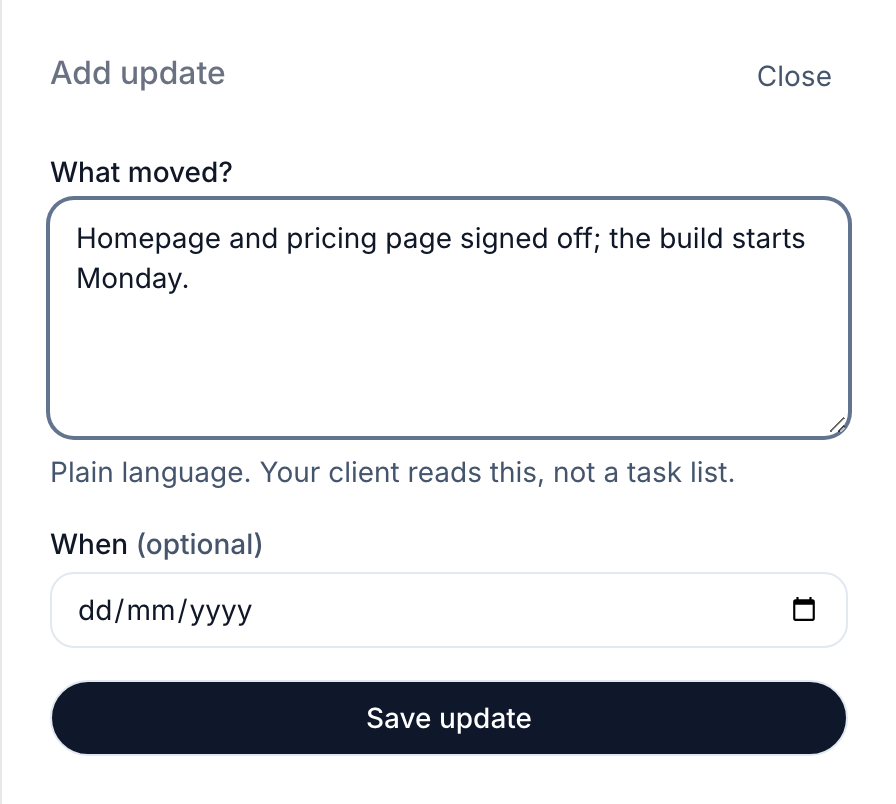
- Click "Add update".
- Type what happened under "What moved?".
- Pick a date under "When" if it happened on another day. Leave it blank for today.
- Click "Save update".
A note only goes out when there's something to tell. If nothing has moved and nothing is owed, Flow skips that note.
See what the next note will say
- Open the engagement.
- Look under "Updates". Each update not yet sent says "will be in the next note".
- Click "See the next note" to read the note as your client will see it.
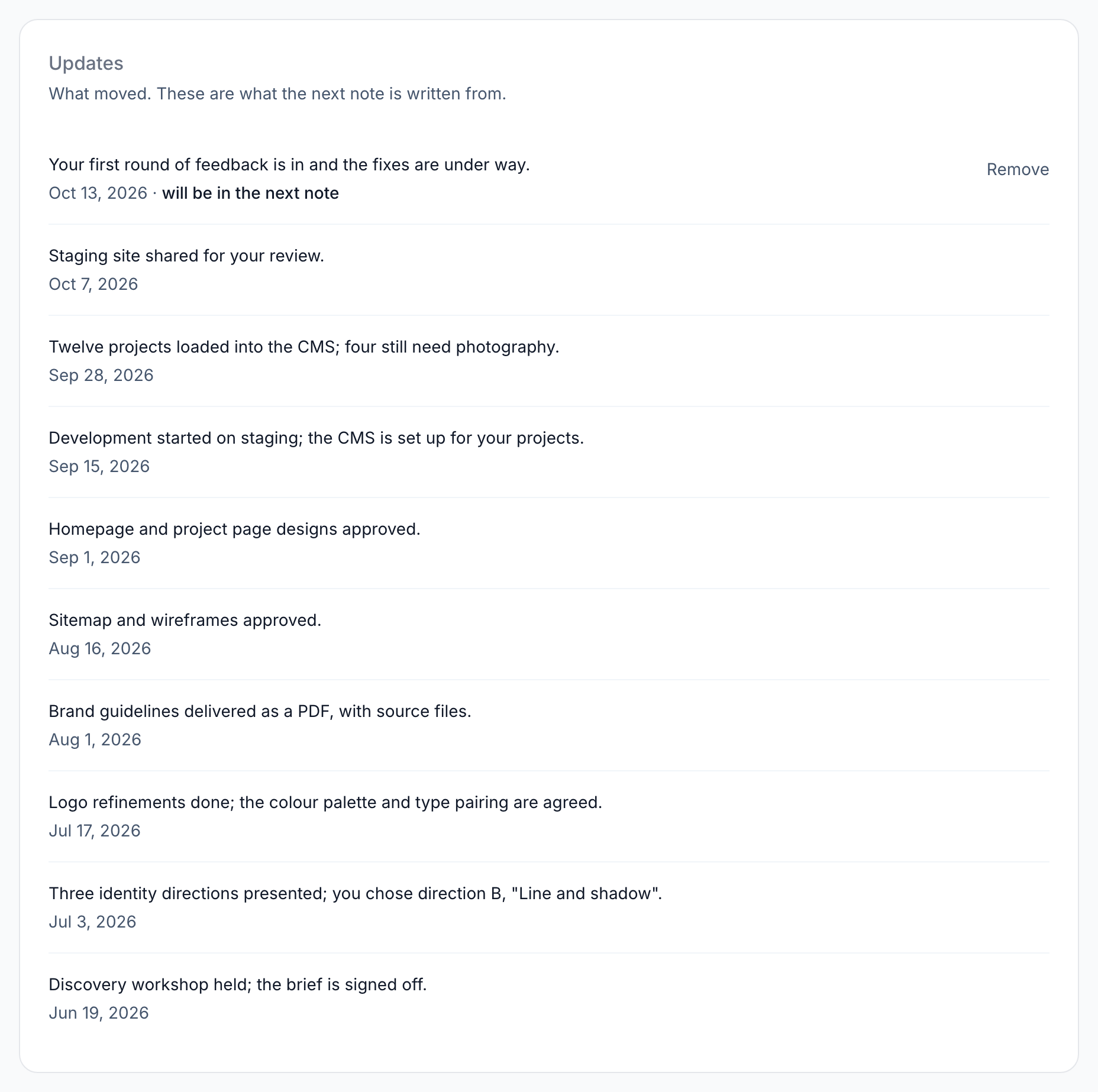
Each note carries the updates recorded since the one before. After that, they stay on the page as a record of what your client was told. See Preview the next note.
Remove an update
- Open the engagement.
- Find the update under "Updates".
- Click "Remove" beside it.
- Click OK when Flow asks "Remove this update?".
"Remove" is only there until a note has carried the update. After that, the update is part of what your client was told, so it stays.
Now and then a note goes out while you're removing an update. Flow then tells you the update has already gone out and can't be removed.
Change an update
You can't edit an update once it's saved. To reword one that hasn't gone out, remove it and add it again.
If it has already gone out, add a new update that puts it right. The next note will carry the correction.
Writing an update clients read
Your client reads this, so write it the way you'd tell them, not the way you'd log it for your team.
- Use plain words. Leave out ticket numbers and any shorthand the client hasn't used first.
- Lead with the result. "Homepage and pricing page signed off." tells them more than "Worked on pages."
- Keep each update to one thing. Two short updates read better than one long one.
- Say so if you're waiting on the client, such as "Waiting on your logo files."
Related
-
Preview the next note
See exactly what Flow would send right now, before it goes.
-
When notes go out
Set how often each client gets a note, and who receives it.
-
Engagements
Add an engagement, change its status, archive it and find it again.
Still stuck? Email marshal.yung@gaiaco.io.