Everyday work
Invoices
Flow doesn't create invoices or take payments. You copy in each invoice you've sent from your own accounting tool. Flow then mentions it in every note until you mark it paid.
What it's for
Recording your invoices here means your client is reminded about what they owe, on schedule, without you having to chase them.
Last updated
Record an invoice
- Open the engagement.
- Click "Record an invoice" under "Invoices".
- Fill in the fields. The table below says what goes in each one.
- Click "Record invoice".
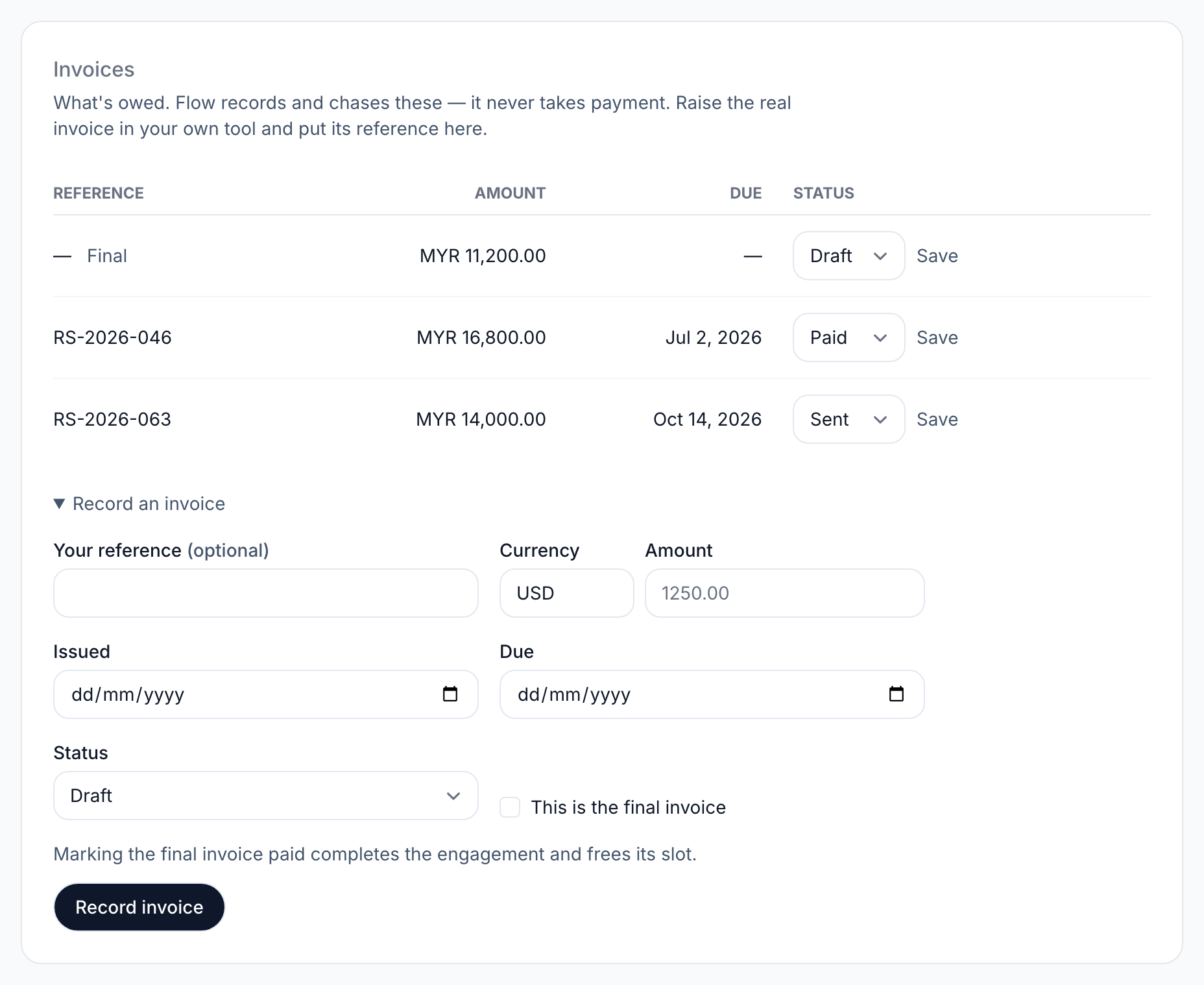
| Field | What to enter |
|---|---|
| Your reference (optional) | The invoice number from your accounting tool. Once an invoice is 14 days overdue, the note uses it to name the most overdue one. |
| Currency | Three letters, such as USD, GBP or MYR. It starts as USD. |
| Amount | The total, such as 1250.00, with no more than two decimal places. It must be more than zero. |
| Issued | The date you sent it. You can leave it blank, but then it isn't counted in the client's days to paid. |
| Due | The date payment is due. You can leave it blank. An invoice with no due date never counts as overdue, so the note never gets firmer about it. |
| Status | It starts as Draft, except on your first invoice. Choose Sent if the client has the invoice, or your notes won't mention it. |
| This is the final invoice | Tick it on the last invoice for the project. |
The four statuses
| Status | What it means | In the note |
|---|---|---|
| Draft | Not sent to the client yet. | Not mentioned |
| Sent | Sent to the client and not yet paid. | Listed as owed until it's paid |
| Paid | You've been paid. | No longer mentioned |
| Void | Raised by mistake, or no longer owed. It stays on the page. | Not mentioned |
Mark an invoice paid
- Open the engagement.
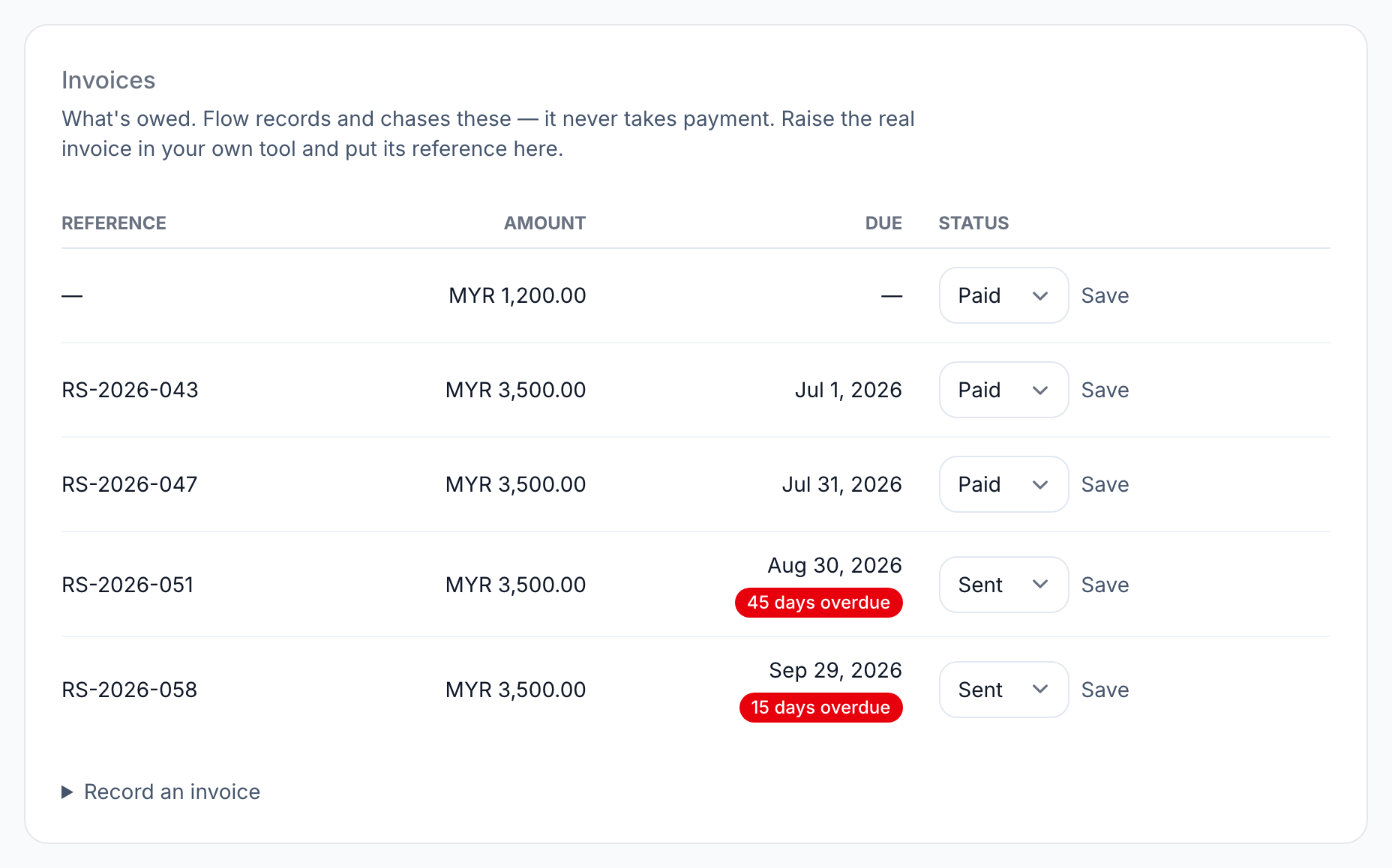
- Find the invoice under "Invoices".
- Choose Paid in the invoice's status menu.
- Click "Save" beside it.
Flow keeps the first day you marked it paid. With the issue date, that shows how quickly the client pays. See days to paid.
The final invoice
Tick "This is the final invoice" on the project's last invoice. When you mark it paid, and nothing else on the engagement is unpaid, Flow completes the engagement.
The invoice's row tells you this before you click. Flow also asks you to confirm. A completed engagement stops sending notes and no longer counts towards your plan's limit.
If another invoice is still unpaid, Flow records the payment and leaves the engagement's status as it was.
Void an invoice
Void an invoice that was raised by mistake or is no longer owed. Flow never deletes an invoice, so voiding is how you take one out of the notes.
- Open the engagement.
- Find the invoice under "Invoices".
- Choose Void in the invoice's status menu.
- Click "Save" beside it.
Flow doesn't ask you to confirm. The invoice stays on the page, and notes stop mentioning it.
You can undo it. Choose the status it had before, such as Sent, and click "Save". A sent invoice goes back into the notes.
What you can't change after saving
Once an invoice is recorded, only its status can change. You can't edit its amount, currency, dates or reference, or whether it's the final invoice.
If any of those is wrong, void the invoice and record it again with the right details.
If you mark an invoice paid by mistake, set it back to Sent and click "Save". If that had completed the engagement, change the engagement back to Active too. Otherwise it sends no more notes.
When you mark it paid again later, Flow still keeps the first day you marked it paid.
Overdue invoices
A sent invoice past its due date shows how late it is, such as "15 days overdue".
At 14 days overdue, the wording of the note gets firmer. At 30 days, it's at its firmest. Flow never adds a fee or interest. See How reminders get firmer.
Currencies
Each invoice has its own currency, and you can mix them. Flow shows a separate total for each currency and never adds them together.
A way to pay
An owner can add a link to your agency's payment page in Account settings. When a note says what's owed, it shows your link under it as "Pay online".
Flow never sees the payment, so you still mark each invoice paid here.
Related
-
How reminders get firmer
Neutral, firm at 14 days overdue, final at 30. Never a fee.
-
Clients and contacts
Add clients and the people who get the notes; see how fast each client pays.
-
Engagements
Add an engagement, change its status, archive it and find it again.
-
Account settings
The name on your notes, where replies go, your timezone and payment link.
Still stuck? Email marshal.yung@gaiaco.io.