Account
Team
Invite as many people as you like to work in Flow with you. Every plan includes unlimited members. Each person is either an owner or a member.
What it's for
With your team in Flow, whoever is working on a project can record its updates and invoices. The notes stay up to date, whoever is in that week.
Last updated
Who can do this: Owners invite and remove people. Members can see who's on the team.
Invite someone
- Open Team from the top bar.
- Type their email address under "Email".
- Choose Member or Owner under "Role".
- Click "Send invitation".
- Copy the link Flow shows after "Invitation created. Send this link to them:".
- Send the link to them yourself, by email or in a message.
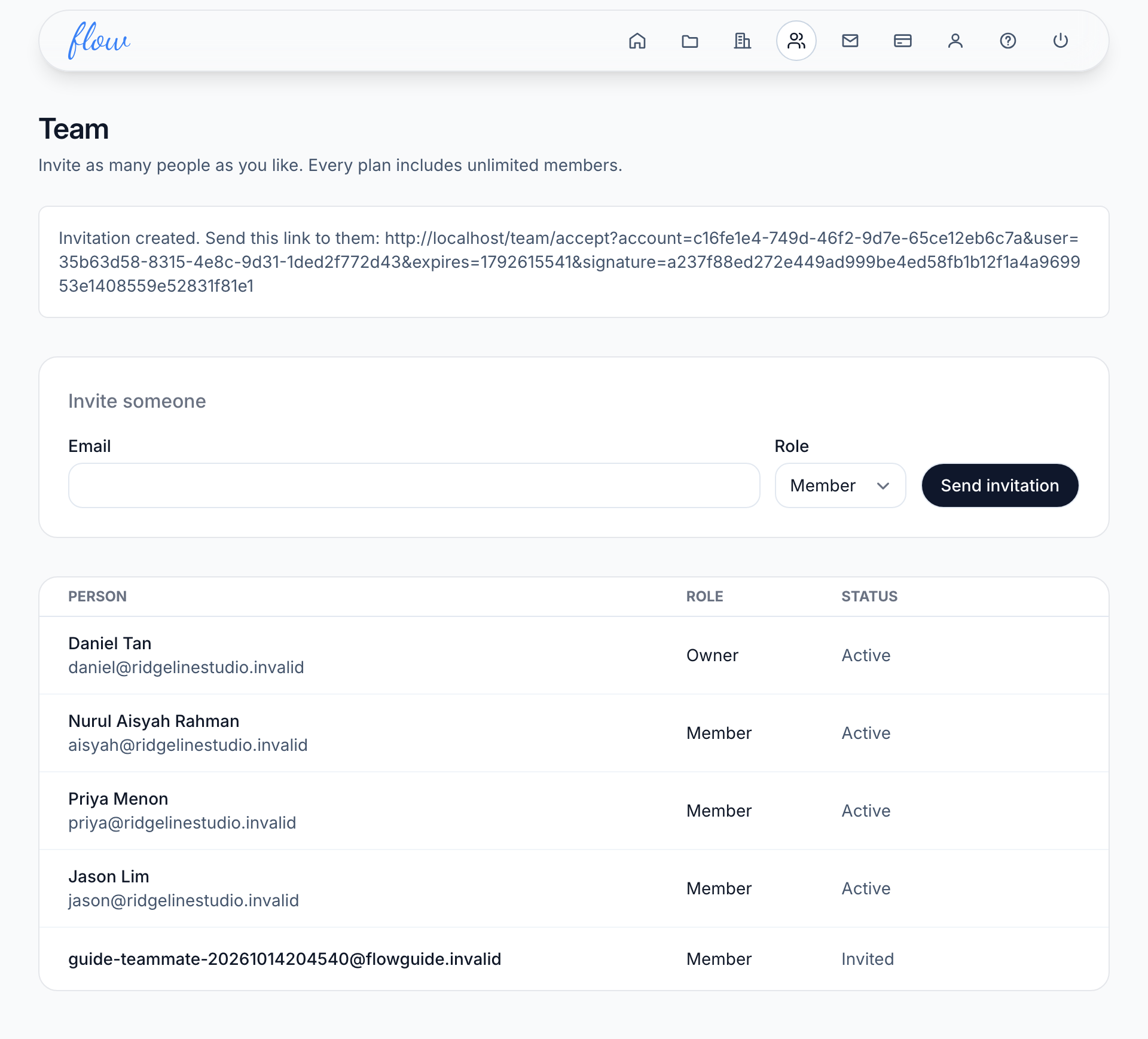
Flow doesn't email the invitation for you. Until the person joins, the list shows them as "Invited". The link works for 7 days.
Accept an invitation
These steps are for the person you invited.
- Open the link you were sent.
- Type your name under "Your name".
- Choose a "Password" of at least 10 characters.
- Click "Join".
- Sign in with your email address and the new password.
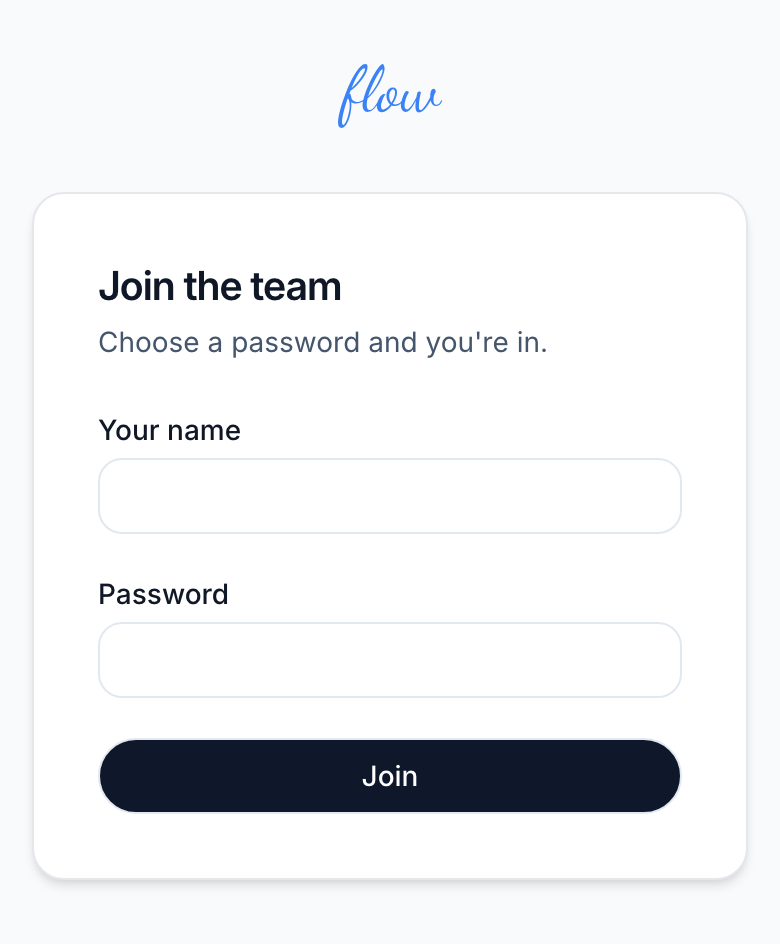
After you click "Join", Flow opens the sign-in page and says "Your account is ready. Sign in to continue."
You may already use Flow with another agency. If so, the password you choose here replaces your Flow password for every agency you belong to. If you type a name, it replaces your name too.
To move between agencies, use the switch on the home screen.
If an invitation link has expired
An invitation link works for 7 days. After that, it opens a page that says "We couldn't find that". The invited person should ask an owner for a new link.
- Open Team from the top bar.
- Type the same email address under "Email".
- Choose the role under "Role".
- Click "Send invitation".
- Send them the new link.
You can invite someone again in the same way before they join. It gives you a new link, and it can change the role they'll join with.
Owner or member
| Owner | Member | |
|---|---|---|
| Engagements, clients, updates, invoices and notes | Yes | Yes |
| Account settings | Change | View only |
| Invite or remove people | Yes | No |
| Deliverability | Yes | No |
| Billing and plan | Yes | No |
| Delete a contact or the account | Yes | No |
If a member opens a page that only owners can use, Flow says "You don't have access to this".
Change someone's role
Flow can't change the role of someone who has already joined. Email marshal.yung@gaiaco.io from your owner address with the person and the role you want, and we'll change it for you.
Remove someone
- Open Team from the top bar.
- Point at the person's row and click "Remove". On a phone or tablet, "Remove" is always showing.
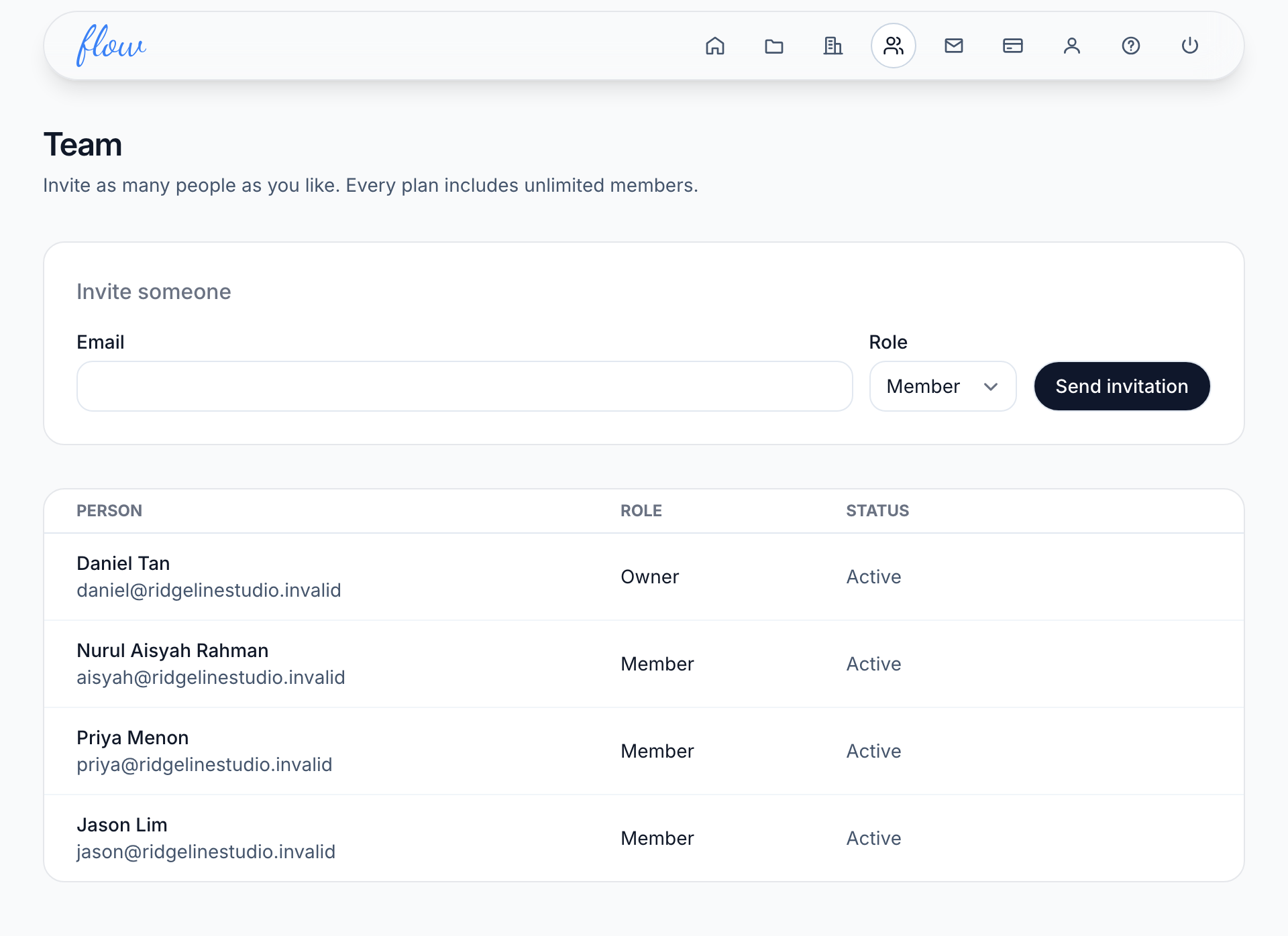
Flow doesn't ask you to confirm. They lose access to this agency straight away. Anything they recorded stays.
You can also remove someone who hasn't joined yet. They can no longer join with their link.
Flow can't invite someone again once you've removed them. If you need them back, email marshal.yung@gaiaco.io and we'll help.
There's no "Remove" beside the last owner, because every agency needs at least one.
Related
-
Account settings
The name on your notes, where replies go, your timezone and payment link.
-
Plans and billing
Plans and limits, upgrading, your card, failed payments and cancelling.
-
The home screen
What's active, what's going out this week and what's owed, on one screen.
Still stuck? Email marshal.yung@gaiaco.io.