Everyday work
Clients and contacts
A client is a business or person you do work for. Each client has contacts, the people who can get its notes, and engagements, the projects Flow sends notes about. Every plan includes unlimited clients and contacts.
What it's for
Keep each client's people in one place, so you can choose who hears about each project. Each client's page also shows how quickly they pay you.
Last updated
Add a client
- Open Clients from the top bar.
- Click "Add client".
- Type the "Client name".
- Type any "Notes" for your team, if you want. They're optional.
- Click "Add client".
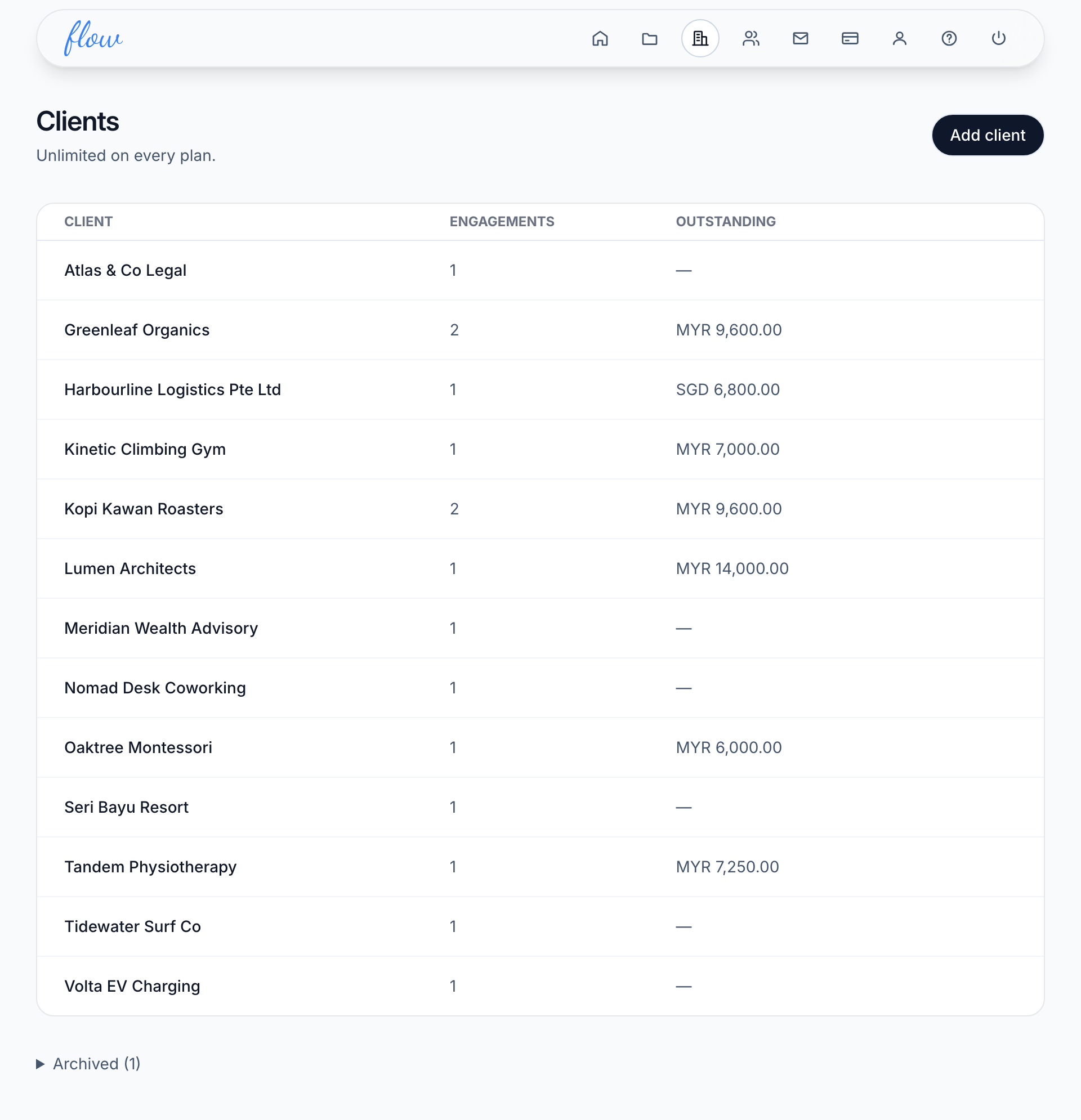
Flow then opens the new client's page, where you add its contacts.
You can also add a client, with its first contact, while you add an engagement.
Add a contact
- Open the client.
- Type their "Name" under "Contacts". It's optional.
- Type their "Email".
- Click "Add contact".
A new contact doesn't get any notes yet. To change that, add them as a recipient on an engagement's "Cadence" screen. A recipient is someone who gets an engagement's notes. See When notes go out.
A contact's email changed
You can't edit a contact once you've added it. To change an address, add it as a new contact and swap them over on each engagement.
- Add the new address as a contact on the client's page.
- Open an engagement this person should hear about.
- Click "Cadence".
- Choose the new contact under "Add a recipient".
- Click "Add".
- Click "Remove" beside the old address.
- Repeat for each of the client's engagements they're on.
Days to paid
- Open Clients from the top bar.
- Click the client's name.
- Read the line under the name, which starts "Pays in".
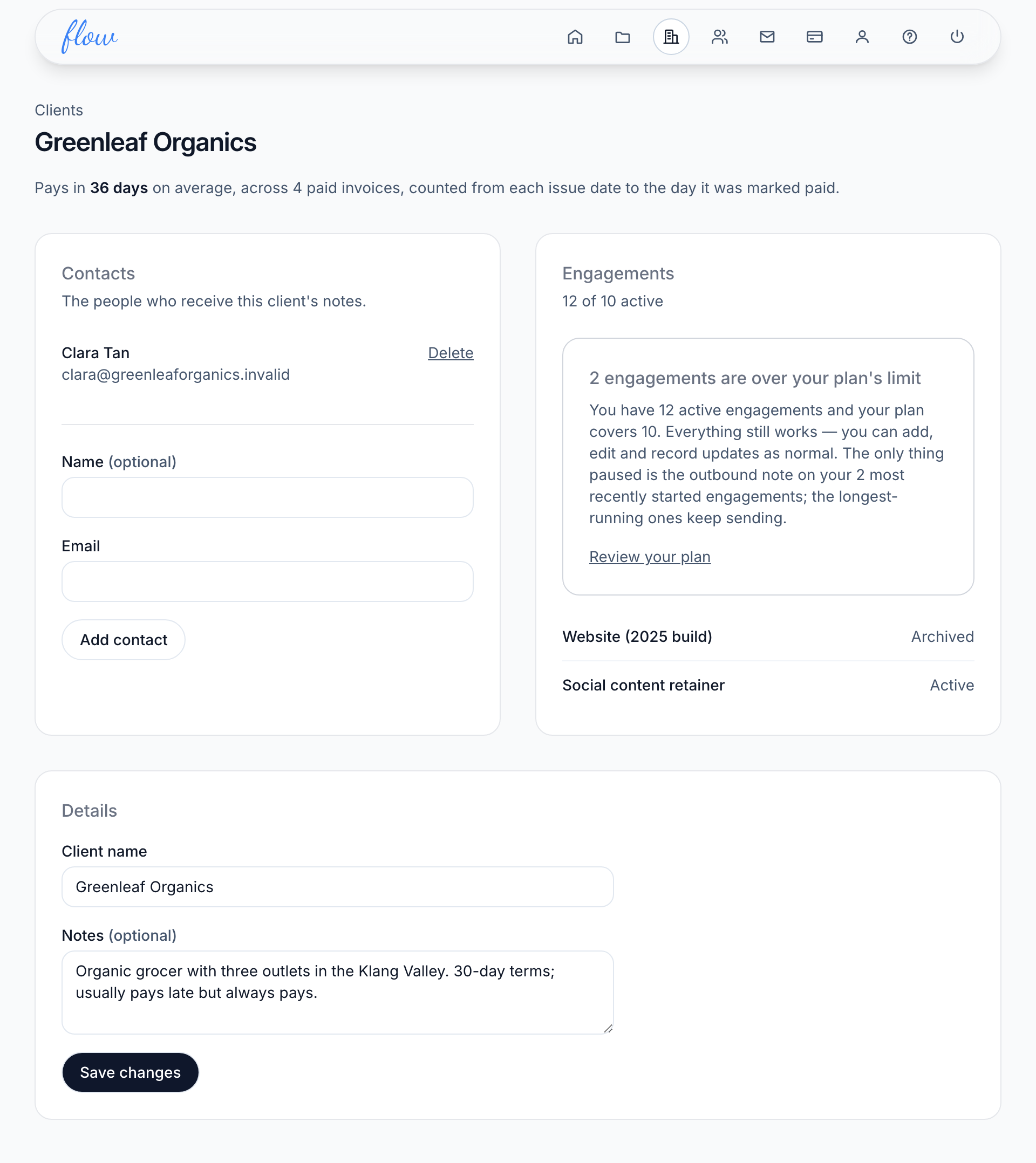
For each paid invoice, Flow counts the days from its issue date to the day you marked it paid. The line shows the average, and how many paid invoices it covers.
A paid invoice with no issue date isn't counted, and the line says so. Until anything is paid, it says "No paid invoices to measure yet."
The line has no colour or rating. Use it when you agree payment terms for the next project.
Rename a client or change its notes
- Open the client.
- Change the "Client name" or "Notes" under "Details".
- Click "Save changes".
Archive a client
- Open Clients from the top bar.
- Point at the client's row and click "Archive". On a phone or tablet, "Archive" is always showing.
- Click OK when Flow asks you to confirm.
An archived client is hidden from the Clients list. It's also left out of the "Client" menu when you add an engagement.
Archiving a client doesn't change its engagements, and their notes keep going out. To stop them, change each engagement's status.
Restore an archived client
- Open Clients from the top bar.
- Click "Archived (N)" at the bottom of the page. N is how many clients are archived.
- Click the client's name.
- Click "Restore".
Delete a contact
An owner can delete a contact and what Flow holds about them. Click "Delete" beside the contact on the client's page, and Flow shows what goes before anything is deleted. See Deleting data.
Related
-
Engagements
Add an engagement, change its status, archive it and find it again.
-
When notes go out
Set how often each client gets a note, and who receives it.
-
Deleting data
Delete one contact, or your whole account, and what Flow keeps.
Still stuck? Email marshal.yung@gaiaco.io.