Everyday work
Engagements
An engagement is one client project or retainer that Flow sends notes about. A note is the short email your client gets on a schedule. Each engagement has its own page and its own schedule.
What it's for
Add an engagement for each piece of work you want a client kept up to date on. Flow then writes and sends the notes for it, so you don't have to remember.
Last updated
Add an engagement
Adding your first one? Add your first engagement takes you through it, with its client and invoice.
- Open Engagements from the top bar.
- Click "+ Add engagement".
- Choose the client under "Client". For a client you haven't added yet, choose "+ New client…" and type its name and a contact's email.
- Type a "Title", such as "Website rebuild".
- Type a "Summary" if you want one. It's one line that opens every note.
- For a client you've added before, tick at least one person under "Recipients". Recipients are the client's contacts who get the notes. For a new client, the contact you typed gets them.
- Click "Add engagement".
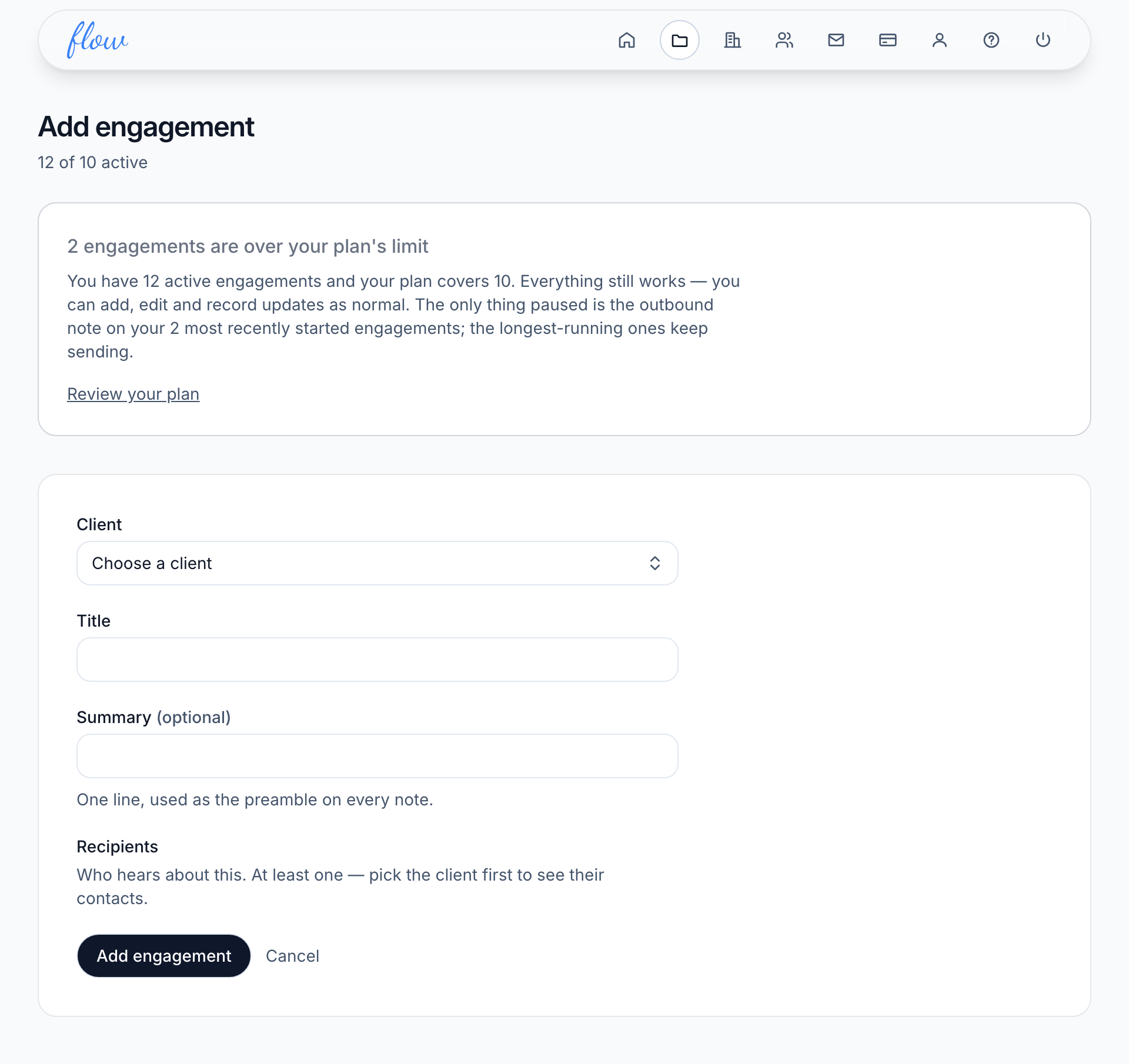
The new engagement starts as Active, on your agency's usual schedule. You can change the schedule on its "Cadence" screen. See When notes go out.
Flow's own words, such as note and recipient, are explained in How Flow works.
The engagement page
- Open Engagements from the top bar.
- Click the engagement's title.
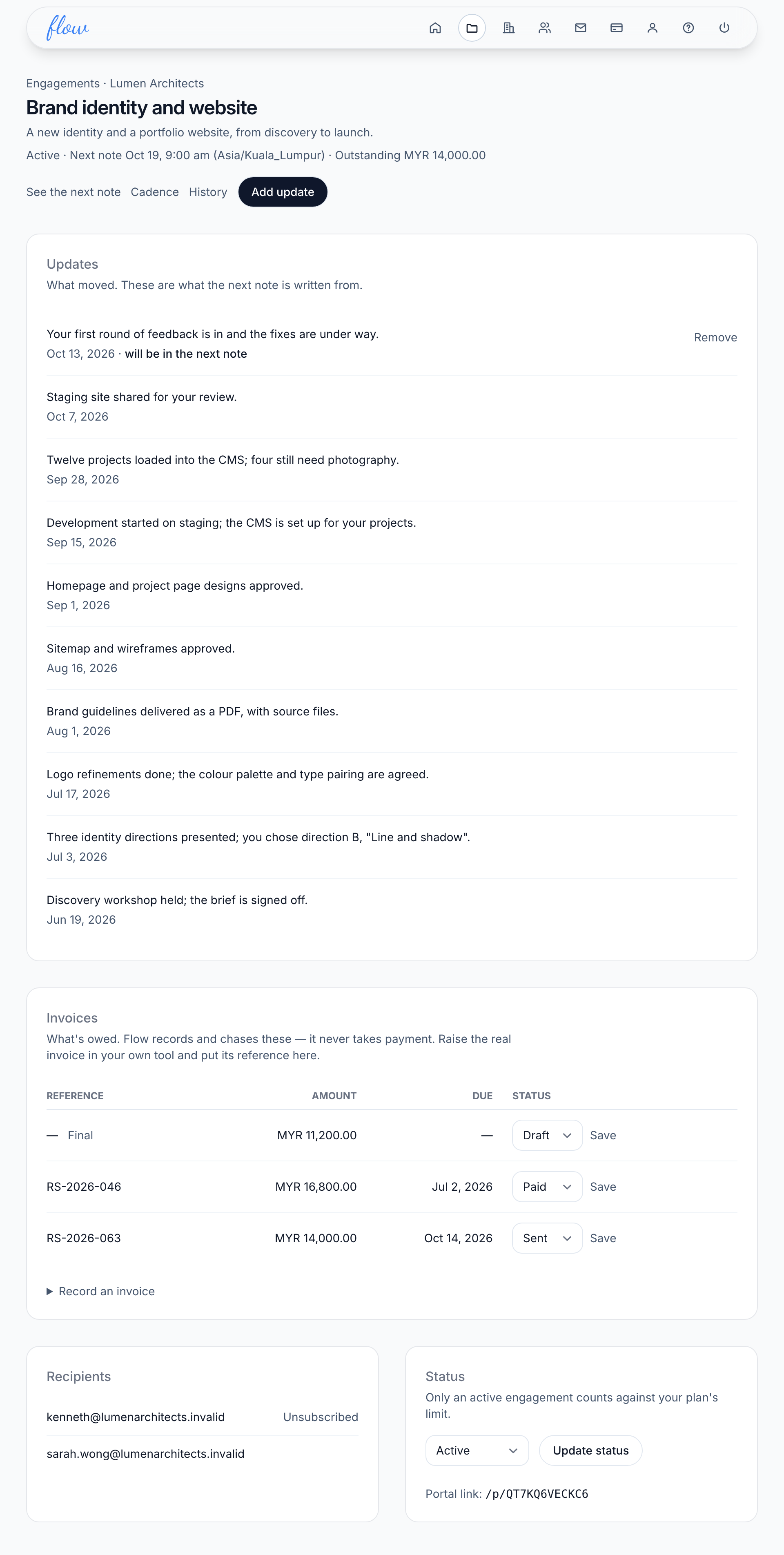
From the top, the page shows:
- The engagement's status, when its next note goes out and what the client still owes.
- Links to "See the next note", "Cadence" and "History", and the "Add update" button.
- Its updates and its invoices.
- Who gets the notes, under "Recipients".
- The "Status" box, where you change its status.
What you can and can't change after creating one
You can change an engagement's status on its page. You can change its schedule and who gets its notes on its "Cadence" screen.
You can't change its title, summary or client. Flow has no way to edit them once the engagement is added.
If one of them is wrong, add the engagement again. Then change the old one's status to Cancelled, so it stops sending notes. Updates and invoices stay with the old one, so record any you need on the new one.
Statuses
| Status | What it means | Counts towards your plan's limit |
|---|---|---|
| Active | Work is going on. Notes go out on schedule. | Yes |
| Completed | Finished, and nothing is owed. | No |
| Cancelled | It didn't go ahead, or it stopped early. | No |
| On hold | Paused for now. | No |
| Archived | Put away. Hidden from the Engagements list and the board on the home screen. | No |
Only active engagements send notes.
Change a status
- Open the engagement.
- Choose a status in the "Status" box.
- Click "Update status".
You can also drag the engagement's card to another column on the home screen.
Flow won't mark an engagement Completed while one of its invoices is unpaid. It names the unpaid invoices instead. Mark each one paid, or void it, and then try again.
You often won't need to do this yourself. When you mark the final invoice paid and nothing else is owed, Flow completes the engagement for you. See The final invoice.
Archive an engagement
- Open Engagements from the top bar.
- Point at the engagement's row and click "Archive". On a phone or tablet, "Archive" is always showing.
- Click OK when Flow asks you to confirm.
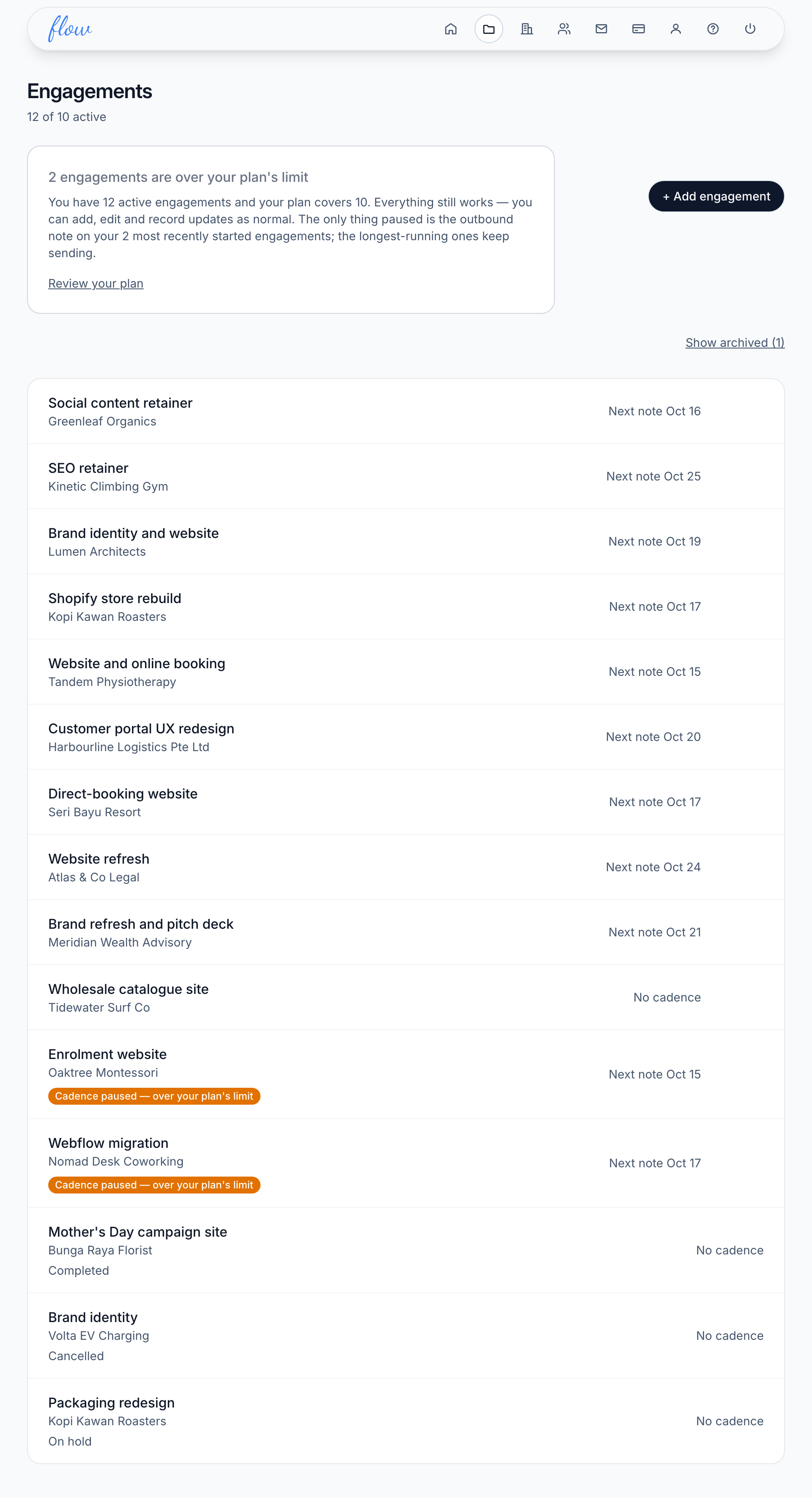
An archived engagement stops sending notes and no longer counts towards your plan's limit.
The list only offers "Archive" on active engagements. To archive one with another status, open it, choose Archived under "Status" and click "Update status".
Find an archived engagement and bring it back
- Open Engagements from the top bar.
- Click "Show archived (N)" above the list. N is how many engagements are archived.
- Click the engagement's title.
- Choose another status under "Status", such as Active.
- Click "Update status".
Click "Hide archived" to put the archived engagements out of sight again.
Over your plan's limit
Your plan covers a number of active engagements. The Engagements list shows where you are, such as "8 of 10 active".
You can still add engagements when you go over. You can still record updates and invoices on every engagement.
What stops is the notes on your most recently started engagements. Their rows say "Cadence paused — over your plan's limit". Your longest-running engagements keep sending.
To start those notes again, move up a plan, or change another engagement's status from Active. The paused notes go out the next time they're due. Owners see a "Review your plan" link. See Plans and billing.
Related
-
The home screen
What's active, what's going out this week and what's owed, on one screen.
-
Updates
Tell the client what moved, in a sentence or two.
-
Invoices
Record what's owed, mark it paid, and close a project on its final invoice.
-
Plans and billing
Plans and limits, upgrading, your card, failed payments and cancelling.
Still stuck? Email marshal.yung@gaiaco.io.