The note
When notes go out
Each engagement has its own schedule for notes. An engagement is one piece of work for one client, and a note is the email Flow sends them about it. You choose how often notes go, at what hour, and who gets them.
What it's for
Set it once and your client hears from you on a steady rhythm. You don't have to remember to write.
Last updated
Change the schedule
The schedule is what Flow calls the cadence. See How Flow works for the other words Flow uses.
- Open the engagement and click "Cadence".
- Under "Schedule", tick "Send notes on a schedule".
- Type a number of days in "Every". It can be from 1 to 90.
- Choose the hour in "At". It's the time in your agency's timezone.
- Leave "On a particular day (optional)" as "Any day — count from when it started", or choose a weekday.
- Click "Save".
- Check the "Next note" line to see when the next one is due.
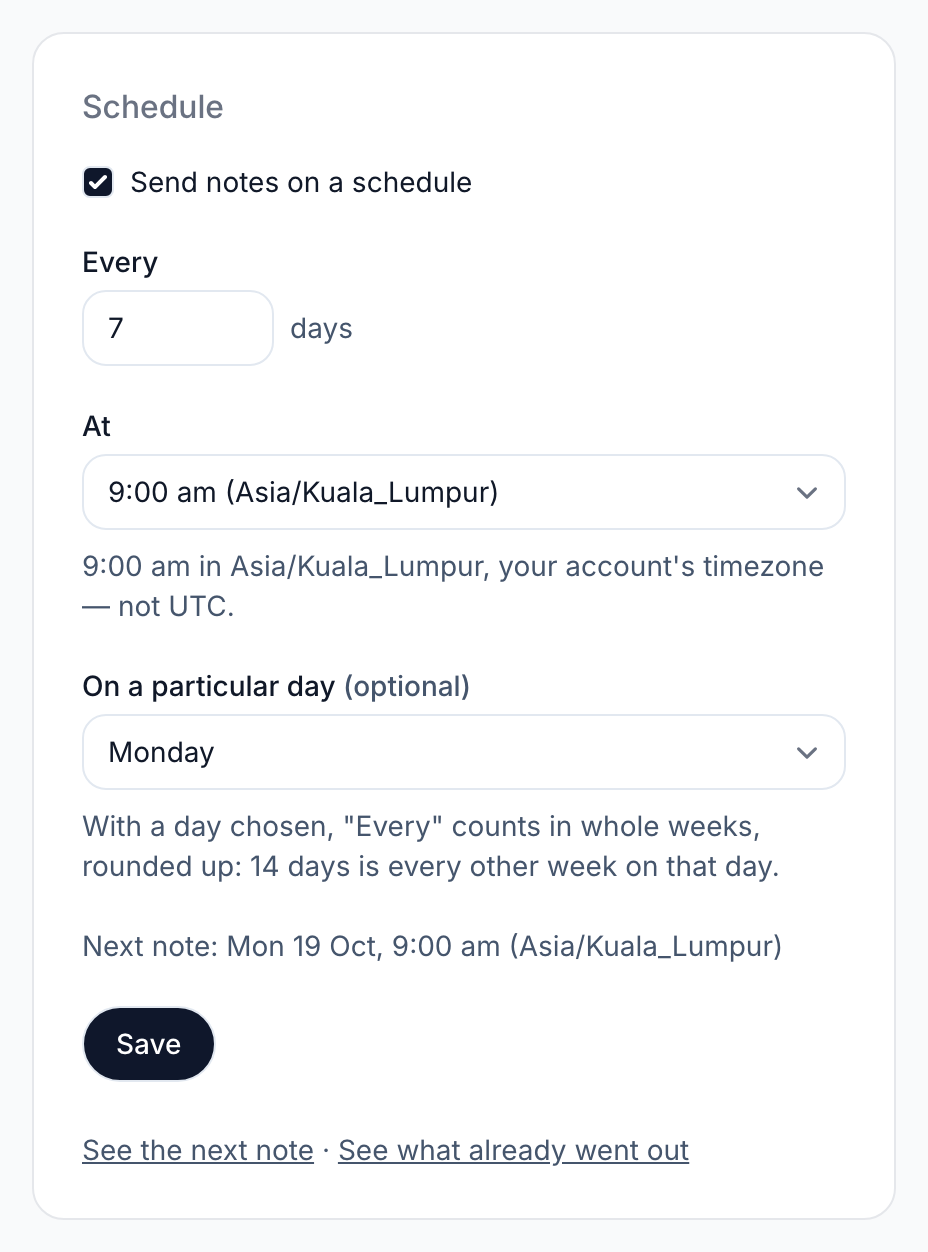
With "Any day", notes count in whole days from when the engagement was added. Making it active again later doesn't restart the count. If you choose a weekday, "Every" counts in whole weeks, rounded up. So 14 days on a Thursday is every other Thursday, and 1 to 7 days is every week.
Saving doesn't send anything. The next note goes out at the time on the "Next note" line.
Read a code out to a client
Under "Read a code out to someone", you can show a code for a client whose email is slow to arrive. See Give a client a code yourself.
Turn notes off
- Open the engagement and click "Cadence".
- Untick "Send notes on a schedule".
- Click "Save".
The engagement stays active, so it still counts towards your plan's limit. To stop it counting, change its status.
Add a recipient
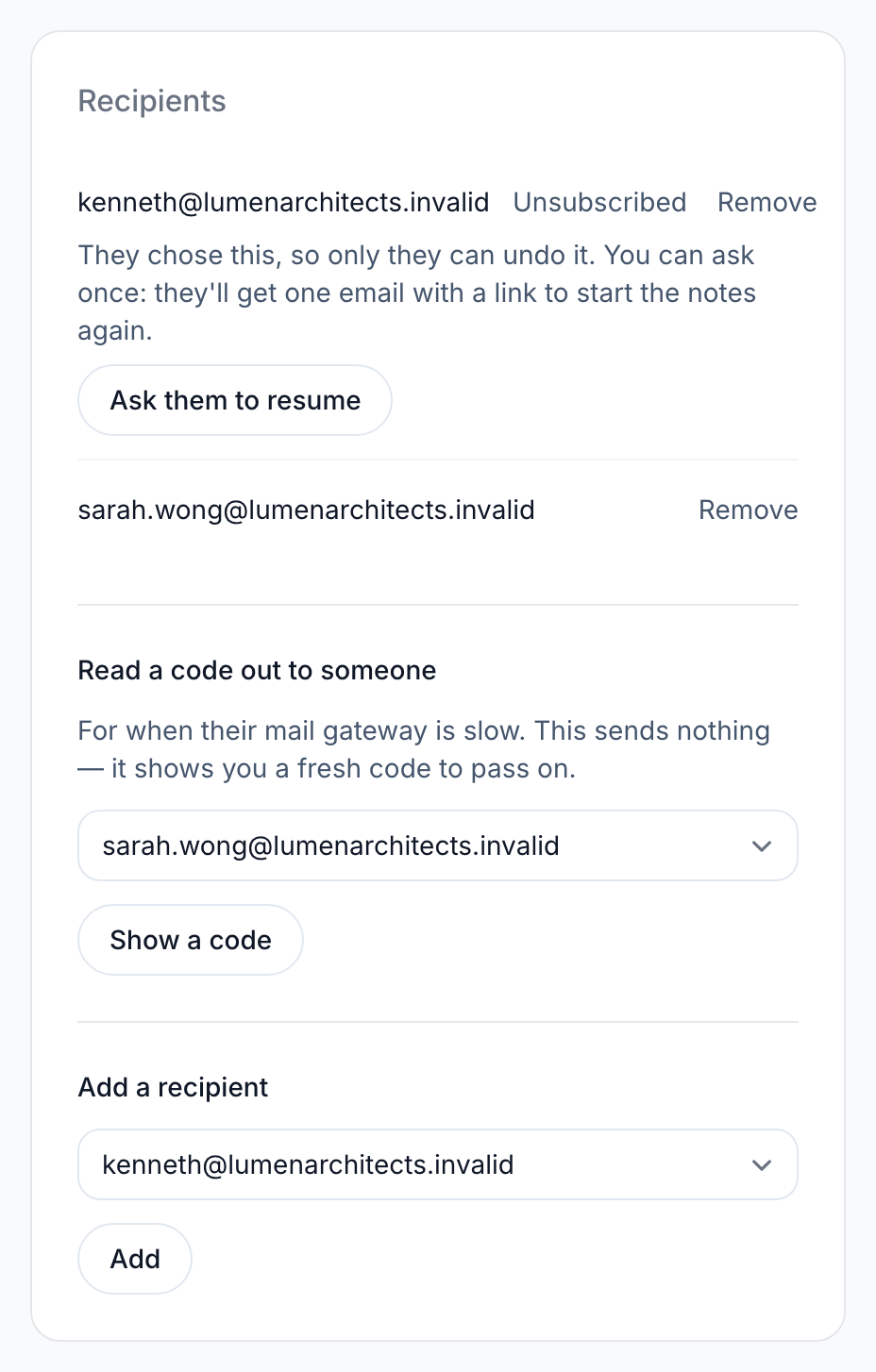
A recipient is a person who gets the notes about this engagement. Recipients come from the client's contacts. To add someone new, first add them as a contact on the client's page.
- Open the engagement and click "Cadence".
- Under "Add a recipient", choose the contact.
- Click "Add".
If a contact stopped the notes on another engagement, the list marks them "stopped notes about another project". The stop link covers one project only, so they will get this one's notes. Their row says which project and when. Check with them if you're not sure they want these.
Remove a recipient
- Open the engagement and click "Cadence".
- Under "Recipients", click "Remove" on the person's row.
From then on they get no notes about this engagement. They also can't open its project page, even if they had it open already.
Nothing is deleted. They stay on the list marked "Removed". If you add them again, they come back as they were. Someone who had unsubscribed comes back still unsubscribed.
You can't remove the last person on an active or on-hold engagement. Add someone else first, or change the engagement's status. To delete a person's details from Flow, an owner deletes the contact on the client's page.
Ask someone to start the notes again
"Unsubscribed" means the person stopped the notes themselves. You can't turn them back on for them. If they used the stop link in a note, you can ask them once.
- Open the engagement and click "Cadence".
- Find the person marked "Unsubscribed".
- Click "Ask them to resume".
They get one email with a link. The link works for 14 days. The notes start again only if they open it and confirm. Their row then shows the date you asked.
You can ask once each time they stop. If the link runs out unused, you can't send another.
If you haven't asked and there's no button, the row says "They chose this, and it can't be undone." That happens when they marked a note as spam. A person who marks a note as spam also starts unsubscribed on any new engagement you add them to.
Can't deliver
"Can't deliver" means our mail provider has stopped sending to that address. If mail to it bounced, the address is probably wrong. Add the right one as a new contact, then add that contact here. Otherwise, ask them for another address.
When a note is skipped
When a note is due, Flow checks a few things first. It skips the note, and records why, in these cases:
- You're over your plan's limit, and this is one of your newest engagements.
- Nobody is on the engagement.
- Everyone on it has unsubscribed.
- Our mail provider has stopped sending to every address on it.
- Nothing has moved and nothing is owed.
A skipped note isn't sent later. The next one is due at the next time on the schedule. You can see each skip in the note history.
Related
-
Preview the next note
See exactly what Flow would send right now, before it goes.
-
Note history
Every note sent, skipped or failed, and what happened to it.
-
How clients see their project page
How clients open their project page with a code, and how to help.
Still stuck? Email marshal.yung@gaiaco.io.