Start here
Your first engagement, client and invoice
Your home screen starts with a "Getting started" box. It has three steps: add an engagement, say who it's for, and add what they owe. The first two are one form.
What it's for
Once these three are in, Flow keeps your client posted on a schedule. You stop writing every update and chasing every invoice yourself.
Last updated
The Getting started box
An engagement is one piece of work your client wants to hear about, like a website build or a monthly retainer. See How Flow works for the other words Flow uses.
The box sits above the cards on your home screen. Each step says "Done" once you've finished it. The box goes away for good after your first invoice.
If you leave before adding the invoice, the box shows a button that starts "Add an invoice to", followed by your engagement's title. Click it to carry on.
Add the engagement and the client
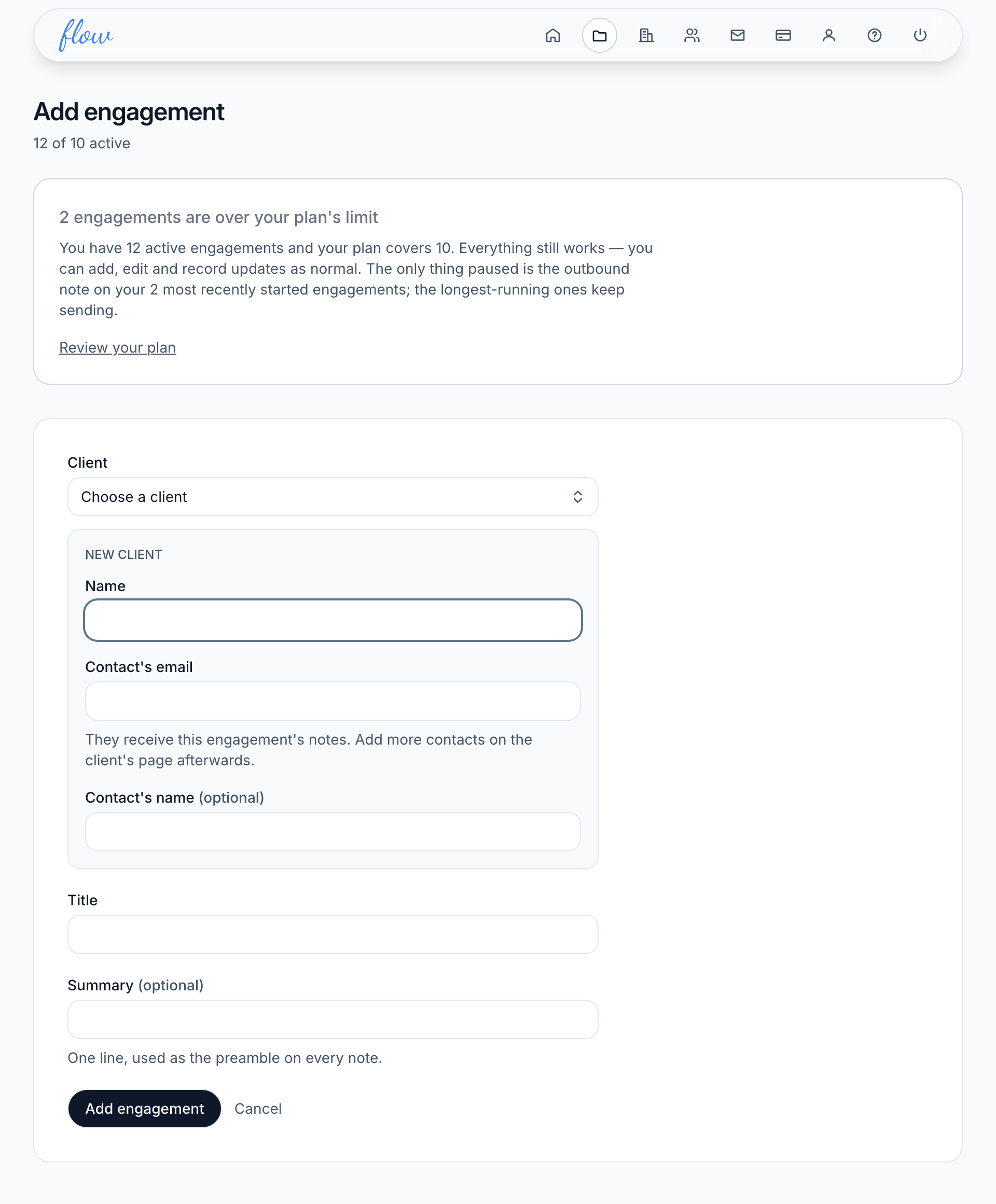
- Click "Add your first engagement" on the home screen.
- Choose "+ New client…" under "Client". If you have no clients yet, it's already chosen.
- Type the client's "Name".
- Type the "Contact's email". This person gets the notes. Their name is optional.
- Type a "Title" for the work, for example "Website rebuild".
- Add a "Summary" if you like. It's one line that opens every note.
- Read the line near the top that says when the first note is due.
- Click "Add engagement".
Your client never needs to log in or download anything. To add more people at the client later, see Clients and contacts.
Add what they owe
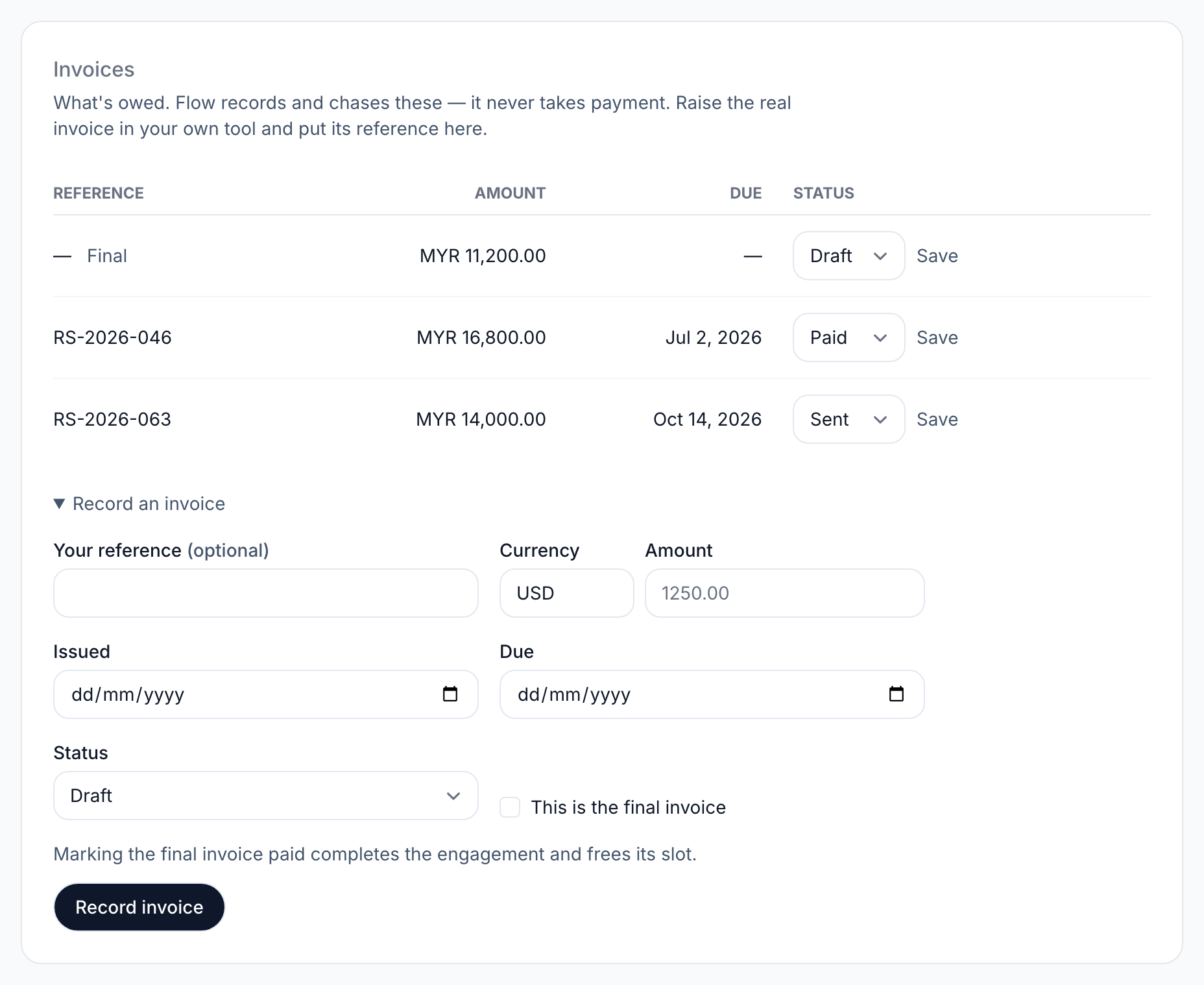
Flow now opens the engagement. The "Record an invoice" form is already open, with "Status" set to "Sent".
- Find an invoice you've already sent from your own accounting tool.
- Type its number in "Your reference". This is optional, but it helps your client match it up.
- Check the "Currency", then type the "Amount".
- Choose the "Issued" and "Due" dates.
- Leave "Status" as "Sent" if the client already has the invoice.
- Tick "This is the final invoice" if it's the last one for this work.
- Click "Record invoice".
Flow mentions a sent invoice in every note until you mark it paid. It never takes the payment itself. More in Invoices.
What happens next
Flow shows a short message to say all three steps are done. From now on, your client hears what you record and what's owed, on schedule, even when you forget.
A note only goes out when there's something to tell, either an update you've recorded or an invoice that's owed. You can read the next note before it goes, change when notes go out, or record what moved.
Related
-
Updates
Tell the client what moved, in a sentence or two.
-
Invoices
Record what's owed, mark it paid, and close a project on its final invoice.
-
When notes go out
Set how often each client gets a note, and who receives it.
Still stuck? Email marshal.yung@gaiaco.io.