Everyday work
The home screen
The home screen shows every engagement and what's owed, in one place. Its heading is your agency's name.
What it's for
Start your day here. You see which clients hear from you this week, who still owes you money, and where each piece of work stands.
Last updated
Activities
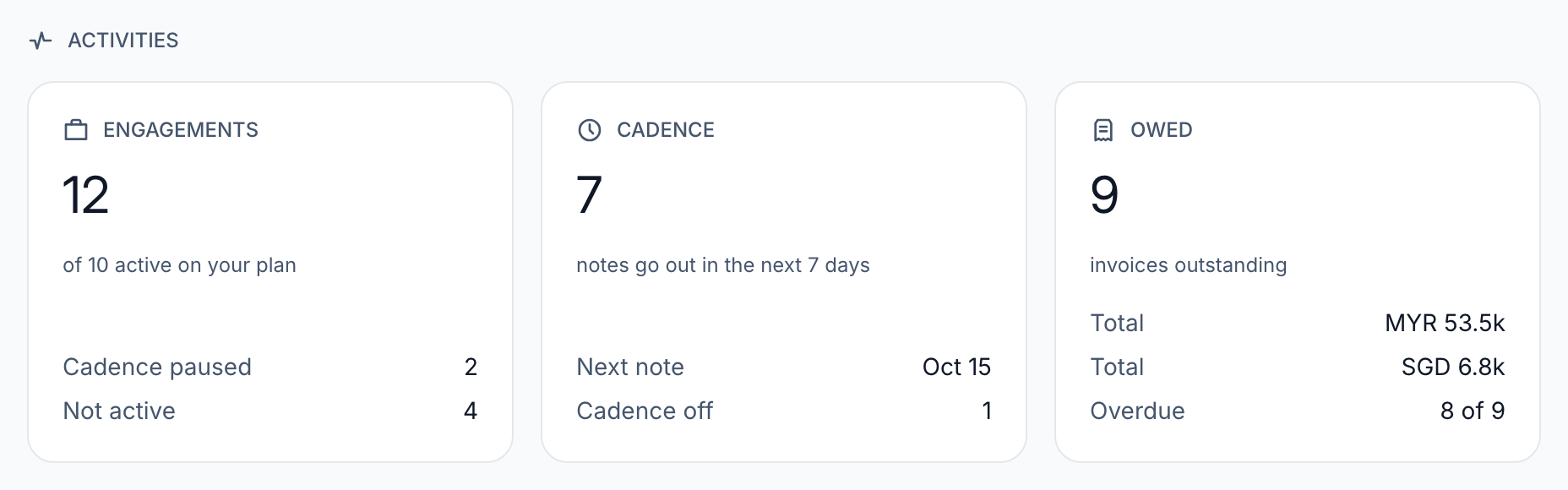
Three cards sit at the top, under "Activities". An engagement is one client project or retainer. A note is the email Flow sends your client. See How Flow works for the other words.
| Card | What it shows |
|---|---|
| Engagements | How many engagements are active, against your plan's limit. Under it, "Cadence paused" counts engagements whose notes are on hold because you're over the limit. "Not active" counts engagements that aren't active. |
| Cadence | How many engagements have a note due in the next 7 days. Each counts once, and a note with nothing to say is still skipped. Under it, "Next note" gives the date of the next one. "Cadence off" counts active engagements with notes switched off. |
| Owed | How many invoices are still unpaid. Under it, one "Total" line for each currency, and how many are overdue. |
Totals on the cards are rounded, for example "USD 15k". Each currency gets its own line, because adding different currencies together gives a meaningless number. Exact amounts are on the board and on each engagement.
The board
Below the cards, each engagement sits in a column for its status: Active, Completed, Cancelled or On hold. Archived engagements aren't on the board. Find them on Engagements.
- Find the engagement's card on the board.
- Drag it to another column to change its status.
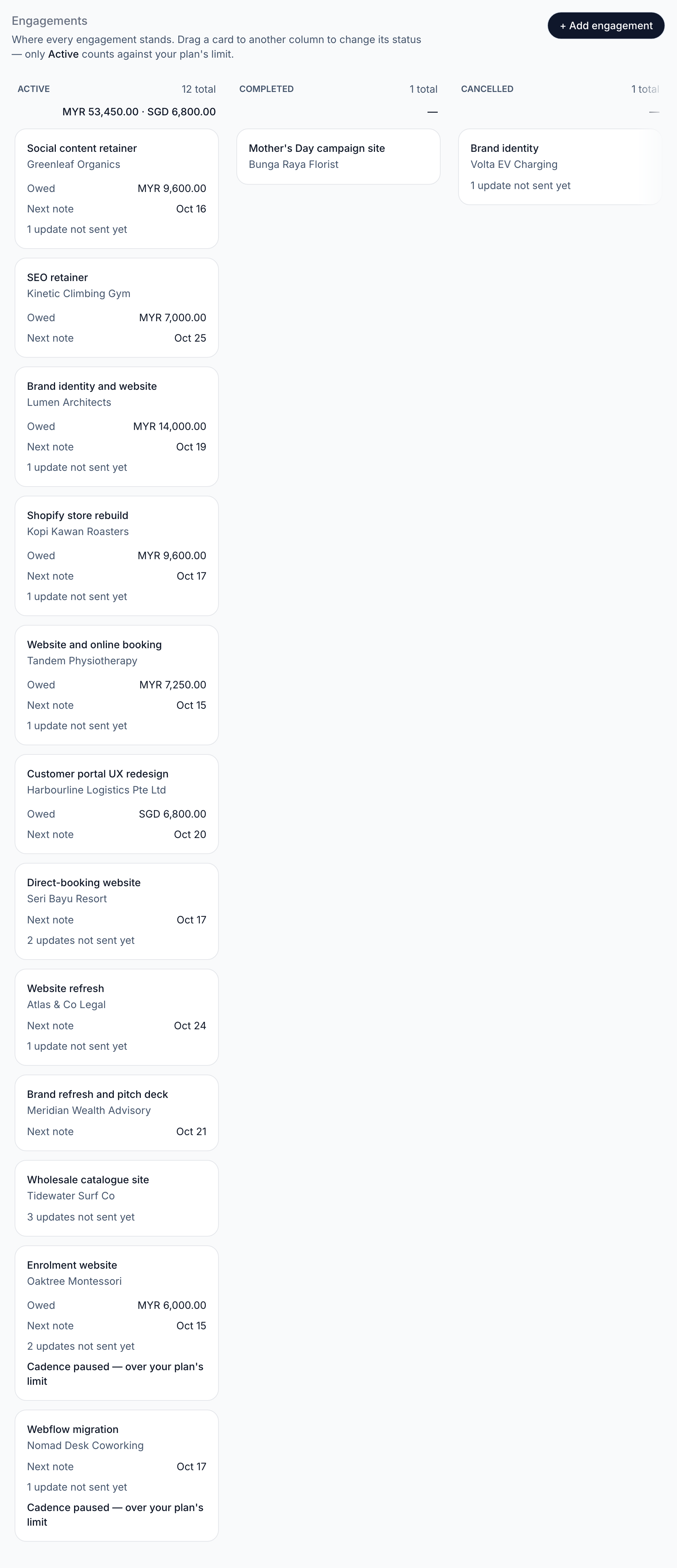
Flow won't move an engagement to Completed while one of its invoices is unpaid. A message at the bottom of the screen names each unpaid invoice and its amount. Mark them paid or void them first, or choose another status.
To add a new engagement, click "+ Add engagement" above the board.
Look at an engagement without leaving the page
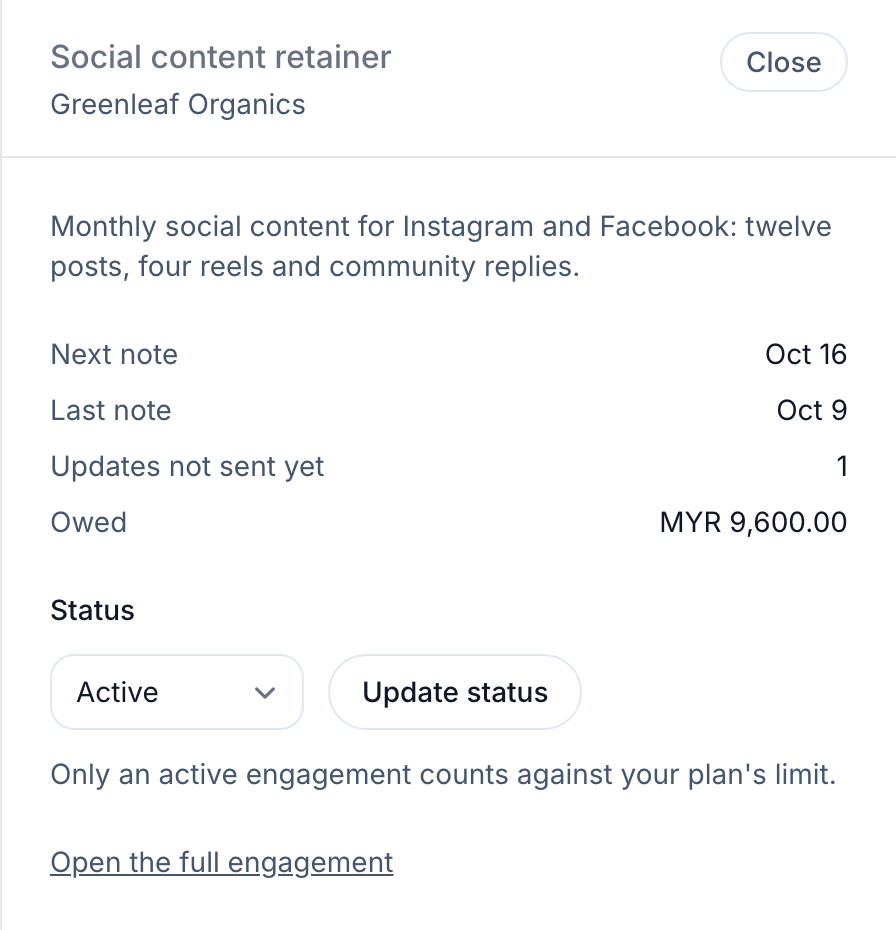
- Click the title on a card. A panel opens on the right.
- Read the summary, the next and last note, the updates not sent yet, and what's owed.
- Choose a new status under "Status", then click "Update status".
- Click "Open the full engagement" to see everything about it.
- Click "Close" to go back to the board.
Your plan's counter
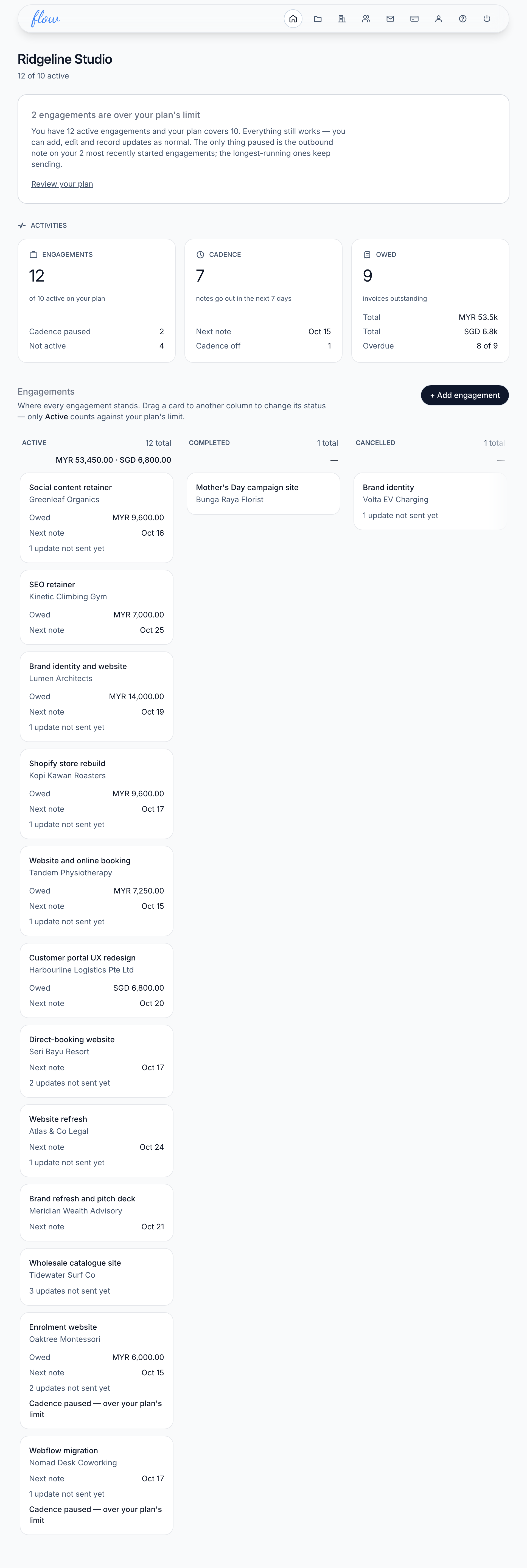
The line under your agency's name reads like "8 of 10 active". That's how many engagements are active, out of what your plan allows.
If you go over the limit, a box says how many engagements are over. Everything still works. Only the newest engagements over the limit stop sending notes. Owners see a "Review your plan" link. See Plans and billing.
Getting around
The bar at the top has an icon for each screen: Home, Engagements, Clients, Team and Account. Owners also see Deliverability and Billing. Then come Help and Sign out.
- Point at an icon to see its name.
- Tap the menu button first if you're on a phone. The icons then show with their names.
- Click an icon to go to that screen.
- Click the question mark for help. It opens this guide in a new tab, on the page for the screen you're on.
The power icon at the end signs you out. If you work for more than one agency, you switch between them here on the home screen. See Signing in.
Related
-
Engagements
Add an engagement, change its status, archive it and find it again.
-
Signing in
Sign in and out, switch between agencies, and what to do if you forget your password.
-
Plans and billing
Plans and limits, upgrading, your card, failed payments and cancelling.
Still stuck? Email marshal.yung@gaiaco.io.