Account
Account settings
Account settings hold what your clients see on every note. That's the name it comes from, where replies go and a link to pay you. They also set your timezone.
What it's for
Set them once so your notes read as coming from your agency, and so replies and payments reach you.
Last updated
Who can do this: Owners can change these settings. Members can see them, but not change them.
Change your settings
- Click "Account" in the top bar.
- Change the fields you need.
- Click "Save changes".
- Check that "Saved." appears at the top of the page.
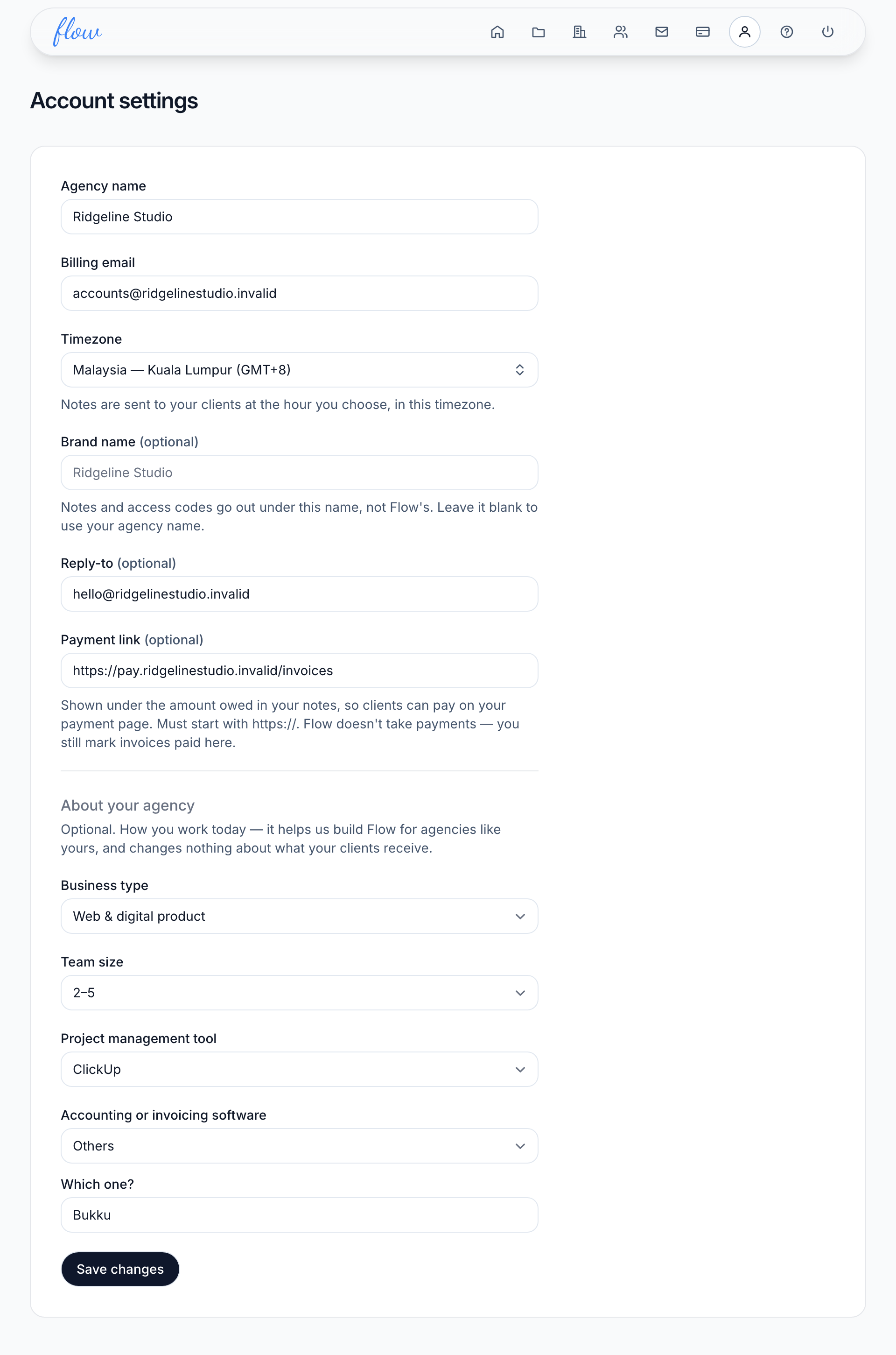
If something can't be saved, Flow lists what's wrong at the top of the page and saves nothing. Fix it and click "Save changes" again.
Members see the same page with the fields greyed out, and the line "Only an account owner can change these."
What each setting does
| Setting | What it does |
|---|---|
| Agency name | Your agency's name in Flow. Notes use it if you leave the brand name blank. |
| Billing email | Where Flow emails you about your own Flow plan, such as a trial ending or a payment that failed. |
| Timezone | Notes go out at the hour you choose, in this timezone. If your browser is set to a different one, Flow tells you and offers "Use it". It never changes your timezone by itself. |
| Brand name (optional) | The name your notes and access codes go out under. Leave it blank to use your agency name. |
| Reply-to (optional) | The address your clients' replies go to. Without it, replies to a note don't reach you. |
| Payment link (optional) | Your own payment page, shown in notes under the amount owed. See below. |
An access code is the short code a client types to open their project page. More words like this are in How Flow works.
Add a payment link
A payment link is the web address of a page where clients can pay you, from whichever payment service you already use. When a note says what's owed, a "Pay online" line with your link sits under the amount.
- Click "Account" in the top bar.
- Copy the address of your payment page and paste it into "Payment link (optional)".
- Click "Save changes".
Flow only accepts a link that follows these rules:
- It starts with https://.
- It uses a normal website name, not a number address or a name with no dot in it.
- It has no spaces, accented letters or unusual symbols.
If it isn't accepted, Flow says "Enter a full https:// link to your payment page, or leave it blank."
The safest fix is to open your payment page and copy the address from your browser's address bar.
Flow doesn't take payments, and it isn't told when a client pays. You still mark the invoice paid yourself. To stop showing the link, empty the box and click "Save changes".
About your agency
This part holds the optional questions from sign-up: "Business type", "Team size", "Project management tool" and "Accounting or invoicing software". You can answer them or change them here, then click "Save changes".
Your answers help us build Flow for agencies like yours. They change nothing your clients receive.
Related
-
Invoices
Record what's owed, mark it paid, and close a project on its final invoice.
-
How reminders get firmer
Neutral, firm at 14 days overdue, final at 30. Never a fee.
-
Team
Invite your team, and what owners and members can each do.
-
Start your trial
Create your account, set up your agency and start the 14-day trial.
Still stuck? Email marshal.yung@gaiaco.io.